Showing posts with label suse. Show all posts

Tuesday, September 19, 2006

The beauty of Suse with XGL

From the day I got my first company computer, I've always wanted the ability to put whatever OS I choose onto it. Naturally, certain elements within the IT department made it their goal in life to thwart such efforts in favor of uniformity. So when I started work at my current company, I was surprised to find out that I could install any OS I wanted though my PC came pre-installed with Windows XP.

Being a big fan of Suse, I immediately installed 10.1 in a dual-boot configuration but that was the extent of my efforts. By the end of my second day, I was already assigned a large task with a quickly approaching deadline and I simply didn't have the time to set up Suse the way I wanted. And so it languished like that for a few months until recently when it became imperative that I switch to a non-Windows OS.

The trepidation I had felt at having to setup my Linux environment dissapated as I rediscovered just how enjoyable it was to be using an industrial-strength OS again. Additionally, I became more productive thanks to quicker build times and a programmer-friendly interface. But not settling for just the basic setup, I went further and begin installing what could only be deemed as frivolous, though not unnecessary in my opinion.

MPlayer was one of the first optional components to get setup, quickly followed by Plugger and a few other goodies so that I could listen to Sirius. To complement my listening selection, I also downloaded Amarok thus enabling me to enjoy my personal music collection. So that I could make the most of my video card, I compiled the ATI drivers and setup a wicked screen saver. I even installed Google Earth so I could take full advantage of my newly enabled 3D effects.
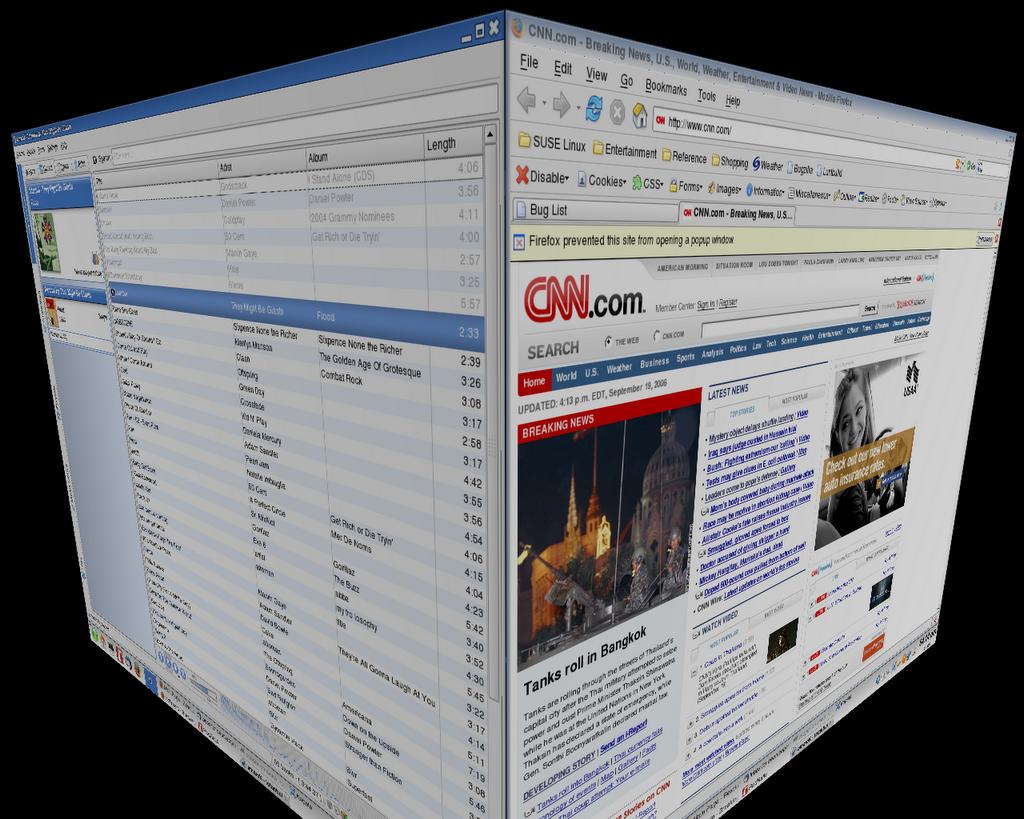
Desktops can be switched between with easeBut by far the coolest thing I installed was XGL. I had made a half-hearted attempt about a week ago at installing it but it wasn't until I walked in this morning and saw my co-worker Grant running it that I finally decided to 'git er done'. Knowing that he was running Gentoo, I figured it had to be much easier in Suse and indeed it was. After about 30 minutes of downloading packages and reading various docs, I finally had it up and running although it took another hour of configuration before I was truly pleased with the results.

Note the transparency on the chat windowHaving used XGL for only about half a day, I can honestly say that it is quite possibly one of the coolest desktop experiences ever. Even my co-workers using Aqua on their Macs were impressed and made a point to stop by and check out what a true 3D desktop looked like. Back here at home, being on a standard '2D' desktop, I feel a bit constrained. So I think I'll sign off on this entry and go install XGL.

Tuesday, January 03, 2006

Compiling MPlayer on SUSE 10

For those of you brave enough to have installed SUSE 10 you are no doubt getting increased productivity thanks to better apps, a well-thought out interface and nearly seamless integration with 3rd party software. I say nearly because in attempting to compile MPlayer for SUSE 10, I came upon the problem of having GCC 4.0 installed by default. Being as it is such a new compiler, most dev teams haven't had the time to fully test and integrate with it. Remember the 2.96 debacle? I just hope the SUSE team's enthusiasm for cutting-edge software will not cause their product to get slammed like RH7 was.

So the first order of business is downloading everything you'll need. Go to the MPlayer homepage and grab the source tarball and a skin tarball. I chose proton although I'm thinking of going back to the classic Blue theme. If you'd like to play Windows media files then download the 'all codecs' package as well. In addition, you will need to download an older version of GCC. I chose 3.4.5 as that was the last stable version in the 3.x tree.

Once you get yourself a previous version of GCC downloaded and untar'd, create a directory titled gcc-3.4.5 in your /opt directory. Assuming you are in the newly untar'd directory, configure your build of GCC with the following command:
shell> ./configure --prefix=/opt/gcc-3.4.5

If everything goes well, you should get no errors. Follow up with the requisite make and make install commands. To test your new version of GCC out, cd to /opt/gcc-3.4.5/bin and type ./gcc. The help screen for version 3.4.5 should thus be displayed.

Now that we have our previous version of GCC up and running, it is time to compile MPlayer. Untar each of the downloaded files. Copy all the files in the directory which contains the Windows codecs into /usr/local/lib/codecs if you will be using them. Change back to the MPlayer untar'd directory and type the following command:
shell> ./configure --enable-gui --cc=/opt/gcc-3.4.5/bin/gcc

This tells the compiler to enable the GUI and to use the older version of GCC that we installed. Again, follow up this command with the requisite make and make install to complete the installation of MPlayer. As well, be sure to copy the contents of the downloaded skin directory into the installed mplayer/Skin directory, by default located at /usr/local/share/mplayer/Skin/. Type gmplayer at the shell to bring up the graphical version of MPlayer.

Monday, December 12, 2005

SUSE 10 and a glass of gin and tonic

For the purpose of installing Battlefield 2 onto my computer, I had to create more room on my Windows partition. I had considered simply attempting to resize my existing partitions but was advised against this by a friend familiar with fsck (pronounced f-suck due to its unwieldy interface and ability to induce psychosis). So it appeared that I would need to reinstall Linux if I were to expand my Windows partition. Having just found out that SUSE 10 was released via openSUSE, I now had a good excuse to spend my evening installing the latest version of my favorite distro.

But I was to be disappointed because SUSE 10 practically installs itself. After downloading the boot ISO image and burning it to disc, I then copied down all the relevant information about my chosen installation server. In this case I chose suse.mirrors.tds.net (path to install is /pub/opensuse/distribution/SL-10.0-OSS/inst-source). The partitioning took a few minutes to set up properly as I ended up having to delete all the Linux partitions, expand the Windows partition, and then recreate the ones required for SUSE 10. Package selection hadn't changed since 9.1 (my first experience with SUSE) and hardware detection got everything. It even got my 11-in-1 card reader which 9.1 had refused to recognize.

Upon reboot, my system came up quickly, much quicker than it had with the previous version of SUSE. Within 30 minutes I had Firefox, Thunderbird and my ATI drivers all installed without any issue. Hence the reference to gin and tonic in the title. It really did take me less time to install SUSE 10, package download notwithstanding, than to drink a 10 oz. glass of my favorite mixed drink. And now that I can get my camera's pictures without having to boot into Windows, the only reason to keep that OS on my hard drive is to play sweet games.